A checkout can look normal after an update while its order and payment records disagree. Test your WooCommerce checkout after each payment-related update before customers encounter a fault.
Gateway plugins, checkout blocks, PHP changes and order-storage changes can affect how payments are recorded. For a Singapore store, the checks may also include SGD totals, PayNow flows, configured GST and refunds.
For example, a gateway could show a successful payment while an order remains pending, or a store could show a refund that has not reached the buyer. These are hypothetical mismatches, not reported incidents.
The IT Solution team's proposed approach covers staging preparation, payment scenarios, PayNow simulation limits, order matching, refund checks and release decisions. In this blog, we discuss how to check whether your checkout still takes and records payments correctly after a WooCommerce update.
Why Should Singapore Merchants Test WooCommerce Checkout Flows After an Update?
Because an update can change how your store records money without changing anything you can see on screen. The checkout still renders, the gateway logo still appears, and customers still reach the payment page. One possible fault is the background step where the provider tells WooCommerce that a payment succeeded.
Start from one principle: a visible checkout is not a working checkout. The real proof is agreement between three records — the order in WooCommerce, the transaction at the gateway, and the email the customer received. An update can disturb any of the three, including the payment-state handover between provider and store.
If you already follow regular website maintenance habits to reduce downtime, extend that same discipline to your payment path. A structured test can help identify a mis-recorded order, duplicate capture or refund problem before release.
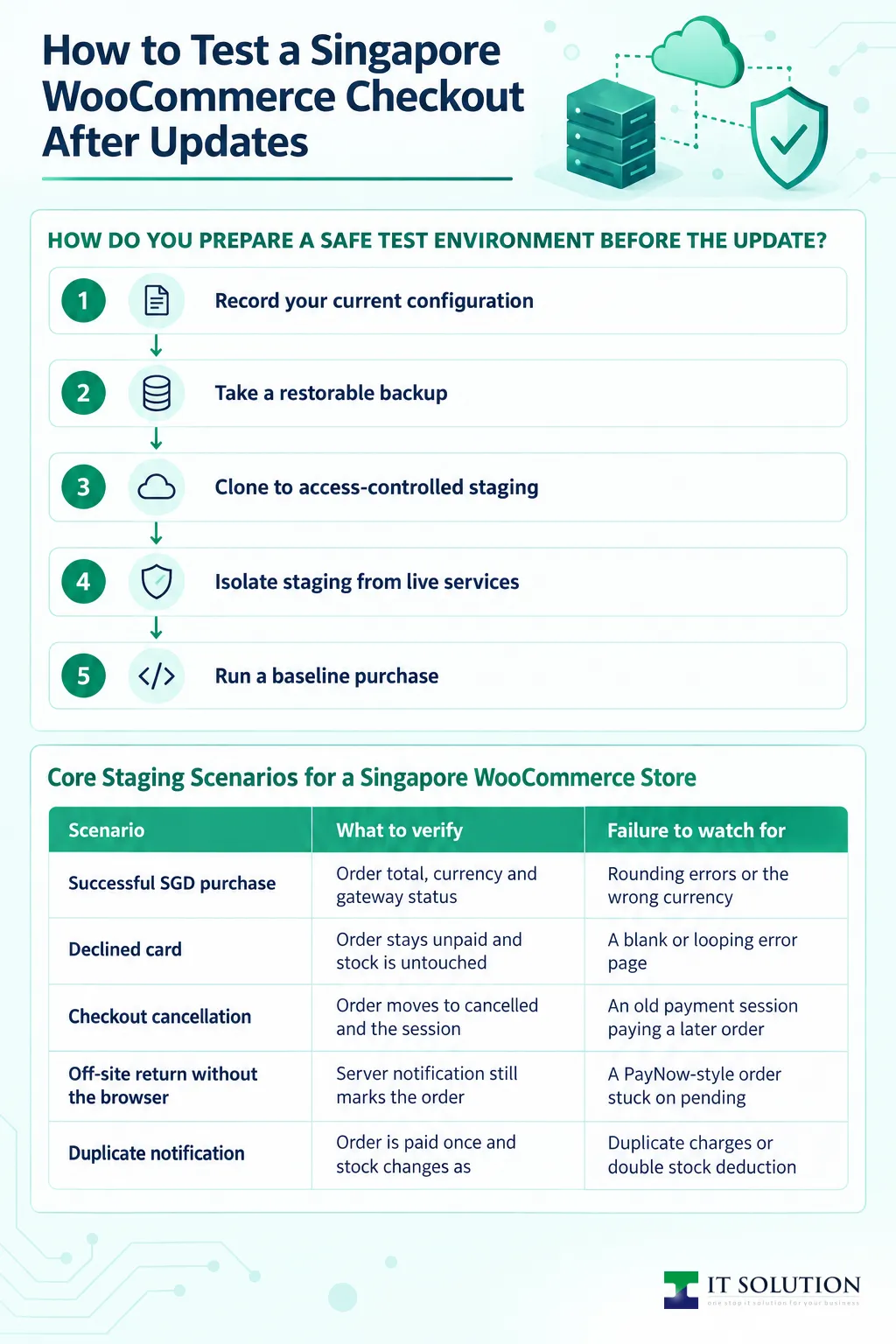
How Do You Prepare a Safe Test Environment Before the Update?
As a proposed starting point, the IT Solution team suggests recording the current configuration, preparing a restorable backup, and cloning production to an access-controlled staging copy before anything changes. This is a suggested plan, not a confirmed description of the team's procedures. Only then do you apply the update and compare behaviour against a known baseline. WooCommerce's guidance on testing orders recommends a staging site rather than test orders on a live store, and that advice applies doubly to payment checks.
Step 1: Record your current configuration
Note the installed gateway, its plugin and version, the WooCommerce and WordPress versions, the PHP version, and whether checkout uses blocks or the classic layout. Also record whether payments capture immediately or authorise first. This record tells you later exactly what changed.
Step 2: Take a restorable backup
Copy both files and the database, and keep the backup until post-deployment checks pass. A backup you have never tested restoring is hope rather than protection.
Step 3: Clone to access-controlled staging
Reproduce production on staging, prevent emails and order notifications reaching real customers, and disable or isolate scheduled integrations. Route test emails to a controlled inbox. Staging should look like your shop without acting on your shoppers.
Step 4: Isolate staging from live services
Replace live gateway credentials with test credentials and confirm staging cannot receive production payment notifications. Be aware that a cloned site can still call live services unless you deliberately cut those connections.
Step 5: Run a baseline purchase
Before updating, complete one purchase on staging and record the result. Any bug that existed before the update was not caused by it, and your comparison stays honest.
Core Staging Scenarios for a Singapore WooCommerce Store
| Scenario | What to verify | Failure to watch for |
|---|---|---|
| Successful SGD purchase | Order total, currency and gateway status all match | Rounding errors or the wrong currency after the update |
| Declined card | Order stays unpaid and any stock reduced for it is restored | A blank or looping error page for the customer |
| Checkout cancellation | Order moves to cancelled when the gateway returns through the cancel link, and the session no longer holds it for payment | An old payment session paying a later order |
| Off-site return without the browser | Server notification still marks the order paid | A PayNow-style order stuck on pending |
| Duplicate notification | Order is paid once and stock changes as configured, with no duplicate effects | Duplicate charges or double stock deduction |
| Full refund | Refund appears in both WooCommerce and the provider | A manual refund entry with no money returned |
Which Payment Scenarios Should You Run in Staging?
IT Solution suggests testing successful payment, decline, cancellation, payment without a browser return, duplicate notifications and refunds for each enabled integration where supported. Add authentication where available, and check guest and account checkout, shipping, configured tax and coupons. Confirm which simulations the installed plugin and payment method support.
For PayNow-style flows, check whether the provider's notification updates the order when the customer does not return to the site. A simulation does not establish that a real bank-app payment or live notification works. Where workflow automation software handles fulfilment, include its triggers in the staged payment and cancellation checks.
A decline should not be treated as paid. Check reservations, cancellation and stock changes against the store's configuration. Notifications may be delivered more than once; processing should be idempotent, without duplicate effects. Table 1 summarises suggested scenarios.
WooCommerce Order Status Reference for Test Orders
| Test outcome | Typical status | Verify against |
|---|---|---|
| Physical goods paid by card capture | Processing | Gateway capture record and order notes |
| Digital or service purchase | Completed, depending on settings | Download access and confirmation email |
| Payment not completed | Pending or failed | Provider transaction log and scheduled actions |
| Customer cancels at the gateway | Cancelled | Session cleanup and stock restoration |
| Refund completed on both sides | Refunded | Provider refund record and refunded amount |
How Do You Test PayNow and Other Live Singapore Payments Safely?
Use the provider's test environment for no-charge checks. Stripe and PayPal offer test environments, and HitPay documents sandbox configuration for its WooCommerce plugin; confirm support for the installed plugin version and each payment method. A simulated payment alone cannot prove that live credentials, real collection and live callbacks work together. WooCommerce recommends staging for test orders. After deployment, if the merchant authorises a live purchase, it may help check those connections: it is a real charge, so check the provider's rules, minimums, fees and refund route first.
A simulated PayNow payment may not reproduce a real bank-app scan, expiry, notification timing or refund routing. Confirm the exact limits with the provider and installed plugin. Cyber security services can help assess access controls and redaction for payment-test evidence.
1. Never place a live checkout in sandbox mode
If customers can pay, the production gateway stays in live mode. Global sandbox switches on a trading store are how test settings leak into real orders. Test on staging with test credentials instead.
2. Run one authorised live purchase
As a proposed safeguard, use a merchant-approved payer and a suitable test product that meets the provider's current minimum. With approval, consider a live purchase through each enabled integration, where the provider permits it. Prevent unintended fulfilment without bypassing the normal checkout path. Reconcile the payment and refund, and review the relevant logs and scheduled actions after deployment. Never record card credentials or API secrets.
3. Refund through the provider's supported route
Some methods require a refund from the provider's dashboard rather than the plugin. Fees may not be returned, and the customer's receipt can lag. Reconcile the refund on both sides rather than deleting the test records.
4. Protect the evidence
Restrict access to test artifacts, redact personal data and retain the sale and refund trail. These are suggested safeguards, not a description of a confirmed IT Solution procedure.
What Does a Payment Order Status Mismatch Look Like?
A mismatch occurs when the gateway and WooCommerce disagree about the same payment. Investigate the disagreement before fulfilment.
Check the expected status for your configuration. A paid physical-goods order may be Processing rather than Completed; status behaviour varies with the integration, products and customisations.
Consider a hypothetical example: a provider records a successful PayNow payment, but the order remains pending. A notification problem is one possible cause, not the only one. Check order notes, provider delivery logs and scheduled actions. If a web application firewall filters provider notifications, check its logs before changing any rules.
A staging demonstration could block a notification, complete a simulated payment and then test a supported retry or replay. Confirm that the provider and plugin support the intended test first. Check that the payment links to the correct paid order without a duplicate charge or unintended stock reduction; stock behaviour depends on configuration. Table 2 gives status examples to verify against the store.
Reconciliation Fields for WooCommerce Payment Testing in Singapore
| Field | Source | What a pass looks like |
|---|---|---|
| Order ID and payment method | WooCommerce order | Linked to the gateway reference without ambiguity |
| Expected total and currency | Cart with shipping and GST | Correct SGD figure and currency code |
| Gateway reference | Provider transaction record | Matches the order metadata or notes |
| Gross captured amount | Provider record | Equals the customer-facing total, before fees |
| Capture status | Provider record | Captured, not only authorised, unless intended |
| Order status | WooCommerce | Consistent with the payment and product type |
| Notification evidence | Webhook or callback log | Delivered and processed without duplicate effects |
| Email evidence | Mail log and controlled inbox | Correct recipient and details, verified delivered |
| Stock movement | Product inventory | Changed according to configuration, with no duplicate stock movement |
| Refund record | Provider and WooCommerce | Both show the refund and the amounts agree |
How Do You Verify a Test Order From Payment to Confirmation Email?
Build one reconciliation row per test and make both systems agree on the reference, the currency, the gross amount, and the status. Table 3 shows a suggested template, not an authentic firm checklist. Add the scenario, expected and actual results, linked references, notification, email, stock and refund evidence, and the reviewer's decision.
Compare like with like. The customer-facing total and the provider's gross captured amount should match in SGD; do not compare the order against the net payout after processing fees. Confirm the payment was captured rather than merely authorised, unless your flow intends authorisation first.
1. Match the reference across systems
The gateway's transaction reference or metadata should appear against the order, in notes or order meta. A payment that cannot be linked to an order is a reconciliation failure, even if the money arrived.
2. Read the confirmation email like a customer
Check the recipient, order number, items, shipping, GST, total, and payment wording against the order. Then check delivery: a mail log saying sent is not proof of delivery, so verify the message in a controlled inbox.
3. Check invoice and GST data flows
If your business is GST-registered, keep invoicing in scope. IRAS is phasing in the GST InvoiceNow Requirement from 1 November 2025 to 1 April 2031, with certain businesses excluded. Check the IRAS FAQ in Sources for applicability and dates. As a practical check, confirm that an update has not disrupted the store's configured invoice data flow.
4. Record notification and stock evidence
Record notification delivery and processing evidence, and check stock movement against the store's settings. Reservations and refund restocking can vary; duplicate notifications should not cause duplicate effects.
When a Failed Checkout Test Blocks Release
| Finding | Before release | After deployment |
|---|---|---|
| Wrong amount or currency | Block release and fix the cause | Restrict the checkout path and investigate |
| Captured payment not recorded reliably | Do not release | Block fulfilment and repair notifications |
| Duplicate capture or double stock move | Block release | Restrict the path and reconcile with affected customers |
| Refund fails or never reaches the payer | Fix before release | Pause refunds, use the provider dashboard, escalate |
| Unrelated provider outage | Delay the release window | Treat as an incident, with no code rollback |
When Should a Failed Test Block Release or Trigger a Rollback?
Block release whenever you cannot trust how the update records money: a duplicate capture, a wrong amount or currency, an unpaid order treated as paid, unreliable recording of a captured payment, or a reproducible refund failure. These are proposed decision criteria, not a fixed policy — investigate the cause of each finding first.
After deployment, restrict the affected checkout path before deciding about code. Roll back the changed code only when the defect is attributable to it and the rollback is compatible with your current database. Preserve every order and payment record created since deployment; never restore an old backup over new transactions. If a schema migration makes rollback unsafe, keep the checkout restricted and escalate recovery instead. A provider outage with unchanged store behaviour calls for incident escalation, not an automatic code rollback. Table 4 summarises these proposed decisions.
A suggested sign-off model has three owners: a technical owner signs the evidence and recovery readiness, a second engineer reviews the reconciliation and unresolved defects, and the merchant's operations or finance lead accepts the order, refund, and fulfilment results. No release should proceed with an unexplained payment mismatch, however small the test amount.
1. Scale the plan to the change
Expand coverage for a major WooCommerce release, a gateway API version change, a checkout block migration, a PHP upgrade, an order-storage change, or a multi-gateway setup. Subscriptions, saved payment methods, multicurrency, and delayed capture each add scenarios. Test each gateway independently, plus switching methods after a failed attempt.
2. Set testing windows as plans, not measurements
Set a testing window according to the store's configuration, the change and the scenarios that need review. Allow more coverage for a major checkout or gateway migration than for a focused patch.
3. Keep the release rhythm sustainable
Some merchants fold this cadence into ongoing website maintenance services for business owners who prefer to outsource the schedule. Either way, plan checks for payment-touching updates, not just major releases.
4. Bring in help early
If a mismatch appears during your window, or your provider changes API versions, contact us before the release rather than after the first customer complaint.
Conclusion
A suggested checkout test starts with controlled staging, supported payment scenarios and a comparison of the order, gateway and confirmation email. An approved live purchase can add a check of real collection and notifications, but it is a real charge and requires a suitable refund route.
Investigate payment mismatches before fulfilment, compare refund records with the provider, and preserve new orders and evidence when considering recovery. Get in touch to discuss a suitable plan for your next update.
Is Your Checkout Ready for the Next Update?
Discuss a staging, payment and reconciliation plan for your Singapore WooCommerce checkout before your next update.
Frequently Asked Questions
Yes. Run your scenarios on staging with the provider's test credentials. Major card providers maintain test environments, and local gateway plugins document their sandbox settings. A simulated PayNow payment does not prove a real bank-app transfer or live notification flow. An authorised live purchase is a real charge; obtain merchant approval and check the provider's minimums, fees and refund route before using one.
A notification that did not reach or process in your store is one possible cause. Check the order notes, the provider's delivery log, and your scheduled actions, then use the provider's retry or replay option if available. Confirm one payment links to one order with no duplicate charge before you fulfil.
No. Never place a production checkout into sandbox or test mode while customers can pay. Clone the store to staging, use test credentials there, and keep live keys only on production after final verification.
Not by itself. A manual refund entry only records intent in your store. Check the provider's own refund record for status, amount, and route — some methods require a dashboard refund — and check whether fees are retained and how receipt timing may vary.
Test after every update that touches payment state, checkout rendering, or order storage. That includes gateway plugin updates, checkout block migrations, PHP changes, and order-storage changes. A major release or gateway API change deserves a broader regression run across every enabled payment method.

Qin
Digital Marketer
The company's offerings to include IT solutions such as domain registration, hosting, and comprehensive website services alongside digital marketing. Her work encompasses website development, graphic design, and email solutions to provide holistic digital strategies, focusing on Digital Business & Systems.